
Getting started
How to Make a TikTok Slideshow for Your Business
Plan, design, and publish a TikTok photo slideshow. Follow a practical checklist for slide copy, readable text, images, and a clear next step.
By ReelMoney · Updated · 5 min read
To make a TikTok slideshow for your business, choose one useful topic, arrange a sequence of photos or designed slides, add readable text, and publish it as a photo post. A product slideshow works best when the reader understands the situation before seeing the sales message.
This guide separates planning, design, and publishing so you can use your own photos, a design tool, or a TikTok carousel maker. The sample layouts and slide counts below are starting points to test, not platform requirements.
Choose a photo post or a video slideshow
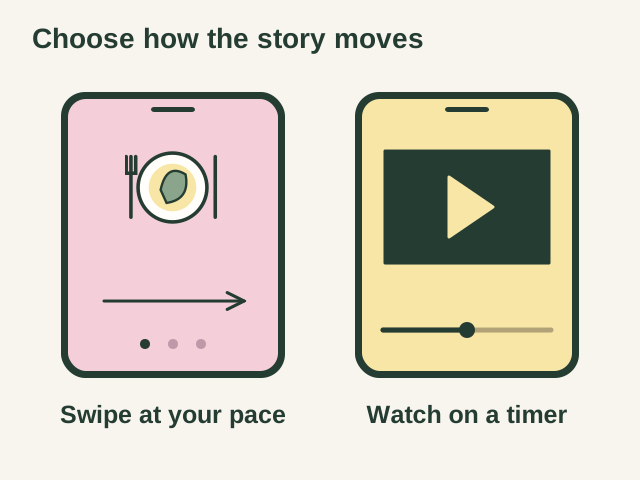
A photo post lets viewers move through a sequence of images. A video slideshow turns those images into a timed video. They can look similar at first, but the viewer controls them differently. Check the publishing format before exporting so you do not accidentally turn an intended photo carousel into a video.
For a tutorial, comparison, or product checklist, a photo post gives each image a clear job. A timed video can be useful when motion, narration, or a set pace is part of the explanation. Choose based on the story you need to tell, then evaluate the results for your audience.
Write a simple slide outline
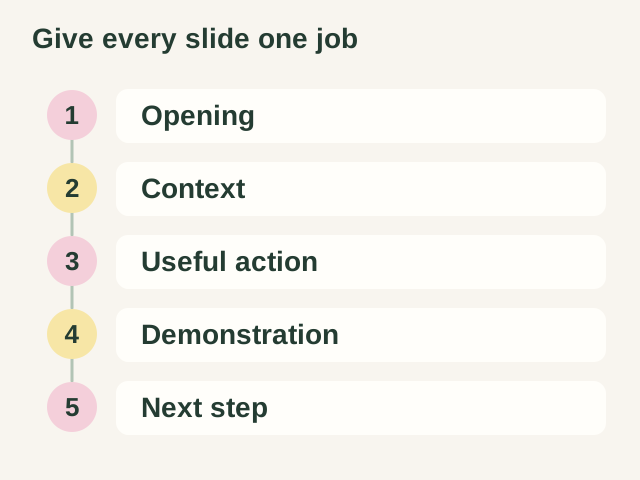
Start with a question your customers already ask. For example, a booking app could answer “How do I stop appointments taking over my lunch break?” A five slide outline might look like this:
- Opening: Booking a client should not cost you your lunch break.
- Context: An empty calendar slot is not always time you want to offer.
- Useful action: Set working hours and reserve the breaks you need.
- Demonstration: Show the actual availability settings and the resulting booking page.
- Next step: Invite the reader to set up their own availability.
Each slide should advance the answer. Remove repeated setup and split a crowded explanation across two slides when that makes it easier to read. For other topics, browse our slideshow ideas for small businesses.
Choose images that support the explanation
Use product screenshots where the interface matters, real product photos where appearance matters, and contextual images where they help establish the situation. A screenshot should show the specific action, not a whole dashboard with text too small to read.
Use images you own or have permission to publish. Remove personal information from screenshots. If an image illustrates a fictional example, do not present it as a real customer result. Keep the crop and visual style consistent enough that the sequence feels connected.
Design for a phone screen
A vertical canvas of 1080 by 1920 pixels is a practical starting size for a portrait layout. It does not guarantee that every part of the image will remain unobstructed in every TikTok view. The caption, buttons, device shape, and viewing mode can change what is visible.
Keep essential text away from the edges. As a conservative starting layout, place the main text inside the central 70 percent of the width and between roughly 12 and 70 percent of the image height. Preview and adjust it on a phone. These are design suggestions, not an official TikTok safe area specification.
Booking a client
should not cost you
your lunch break.
Use one main typeface and consistent spacing. Pink or yellow text can work over a darkened photo, but contrast must survive the final image. If you use a decorative subtitle, leave room for the headline to wrap without touching it. A clean text block is more useful than a larger one that gets clipped.
Check the exported slides
- Read every slide at normal phone size, without zooming in.
- Check the longest headline and the densest paragraph first.
- Make sure subtitles do not overlap the main text.
- Inspect the left edge, bottom caption area, and space beside the action buttons.
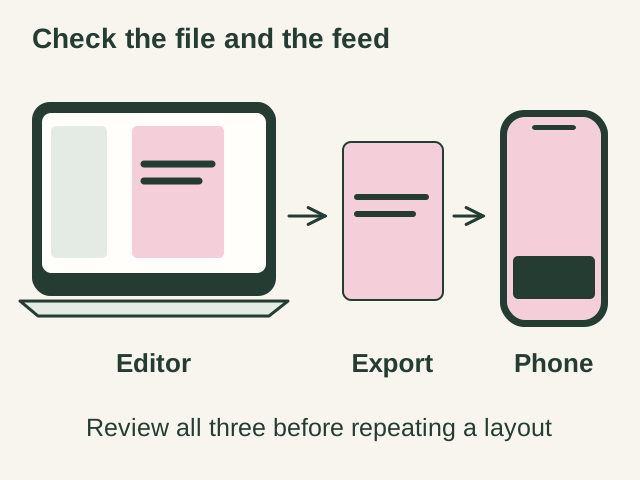
- Compare the exported image with the editor preview.
- Check that screenshots remain readable after compression.
- Confirm that the final slide points to a destination that matches the post.
If text looks too large, shorten it before shrinking it until it becomes difficult to read. If the image is cropped, move essential content inward and check the export dimensions. Do not rely on an editor preview alone when diagnosing a problem in a published post.
If your text is cropped or a subtitle touches the headline, use the slideshow text layout checklist to find the cause and compare real before and after exports.
Publish and inspect the result
In TikTok, begin creating a post, select your photos, arrange the sequence, and use the available photo posting controls. Add a caption that explains the topic and a relevant next step, then review the audience and publishing settings. Labels and available controls can vary by app version and account.
Check TikTok's posting help for its current instructions. If your account does not show the expected photo controls, follow the options in the app rather than assuming a timed video export will become a swipeable photo post.
With ReelMoney, you can generate a slideshow, review its text and images, and use the available TikTok publishing or scheduling flow after connecting your account. Review the final post too, especially when trying a new text style.
Use the next post to answer a better question
Save the topic, opening line, slide sequence, and destination in a simple content log. Review comments for unanswered questions. Compare posts after similar amounts of time and look at relevant visits or inquiries alongside views.
If you are starting from an app description, follow our guide to promoting an app with slideshows. If you only need help with the outline, try the free slideshow idea generator before designing the images.